
Migrating from Pterodactyl (Standalone)
This guide is for Pterodactyl installs that run directly on the host - no Docker, no containers, just a typical install at /var/www/pterodactyl or similar. If you're using Docker, head to the Dockerized guide instead.
The process involves installing Calagopus alongside your existing Pterodactyl, pointing the importer at Pterodactyl's .env file, and letting it read everything from Pterodactyl's database and write equivalent records into Calagopus's fresh database. Users log in with the same credentials afterwards.
API keys do not migrate. See the intro for the full reasoning - in short, the hashes are not compatible and the API is not either, so old keys would not work even if they were imported.
Prerequisites
Before you start, you'll want:
- Your Pterodactyl
.envfile accessible (you'll point the importer at it) - Calagopus Panel installed but not yet configured - we need to land on the Out-of-Box Experience (OOBE) screen and stop there
Install Calagopus First
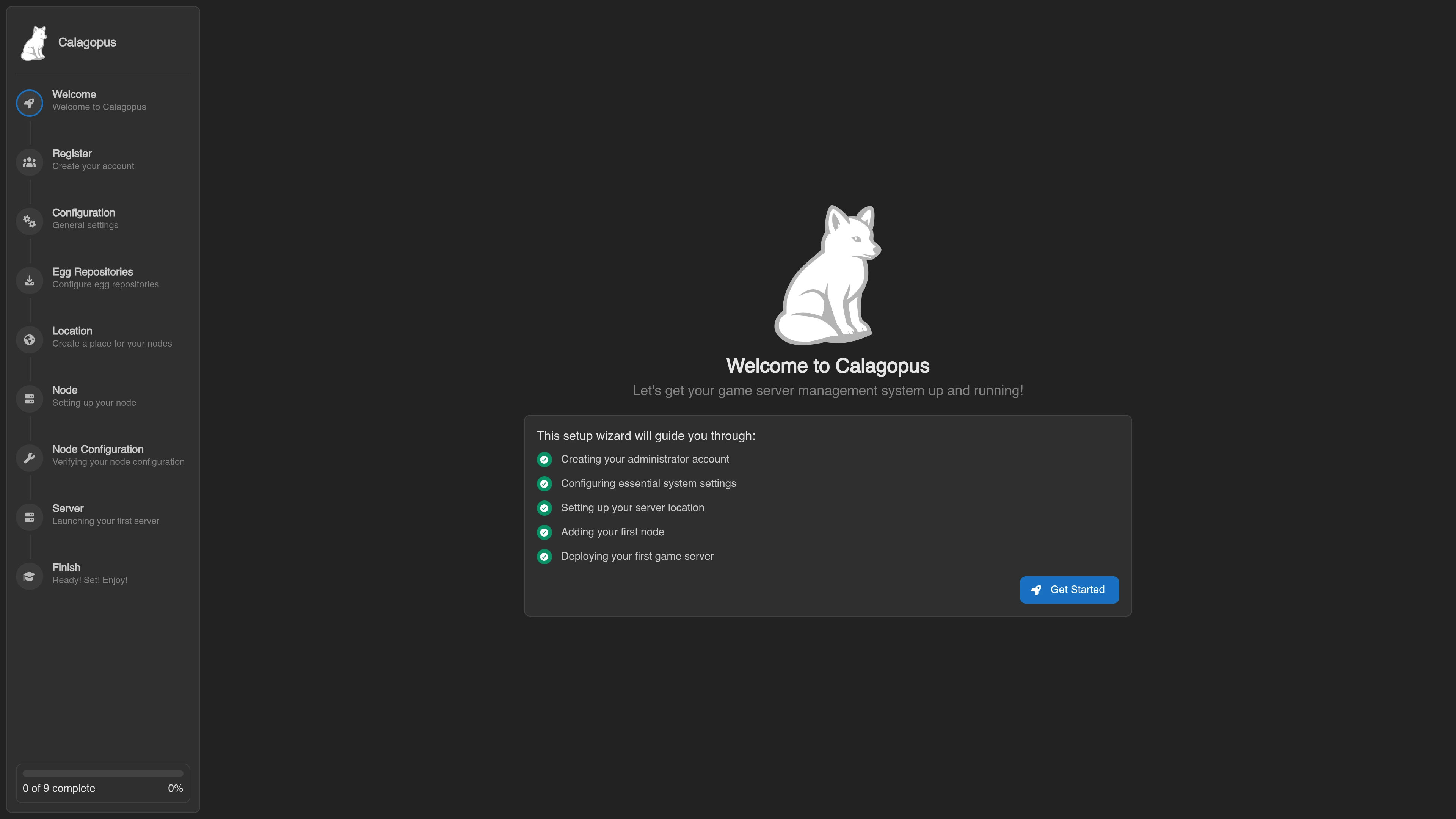
If you haven't installed Calagopus yet, follow the installation guide to get it running. Once you reach the OOBE screen, stop. Don't click through it. Don't create the admin user. Just leave it on that screen and come back here.
Don't click through the OOBE
The importer needs an empty Calagopus database to write into. The OOBE creates initial records (admin user, default settings) that would conflict with what the importer wants to do.
I already clicked through - how do I undo it?
You'll need to drop and recreate the database. Pick the matching tab for how Calagopus is installed:
Head to the directory with your Calagopus compose file and stop the stack:
docker compose downDelete the Postgres data directory:
# This wipes the Calagopus database. Don't run this if you have data you care about.
rm -r postgres
Start Calagopus back up:
docker compose up -dChoose Your Calagopus Install Method
The exact import command depends on how Calagopus itself is installed. Pick the matching tab and follow along:
Make a working copy of Pterodactyl's .env and edit DB_HOST to point at the host from inside the Calagopus container. The web service ships with host.docker.internal mapped to the host's gateway, so that's the value to use:
cp /var/www/pterodactyl/.env /tmp/pterodactyl.env
# Open /tmp/pterodactyl.env in your editor and change:
#   DB_HOST=127.0.0.1   →   DB_HOST=host.docker.internal
Then copy it into the Calagopus container:
docker compose cp /tmp/pterodactyl.env web:/.envNow run the importer:
docker compose exec web calagopus-panel import pterodactyl --environment /.envThis walks through users, servers, nodes, allocations, eggs, and so on. Larger Pterodactyl installs take longer; small ones finish in seconds. Progress is logged to stdout.
If the import errors out with a connection or auth error
If the importer fails immediately with something like "Host 'X' is not allowed to connect" or "Access denied for user", you've hit MySQL/MariaDB's host-based access control. See Allowing the Database User to Connect from Docker below.
If it fails partway through with a different error, treat the database as poisoned. Partial imports leave Calagopus in an inconsistent state. Drop the Postgres data (the steps in the OOBE warning callout above), let Calagopus recreate it empty, and re-run the import.
When the import finishes, restart the stack:
docker compose down
docker compose up -d
Log in with your existing Pterodactyl credentials.
Allowing the Database User to Connect from Docker
If you're only seeing this section because the import failed with a host or auth error: the cause is that Pterodactyl's MySQL/MariaDB user is restricted to specific source hosts (typically localhost or 127.0.0.1), and the Calagopus container connects from a different IP - the Docker bridge gateway. From MySQL's perspective, pterodactyl@'localhost' and pterodactyl@'172.17.0.1' are different users, and only the first one exists.
The fix is to grant the same user access from any host ('%'), run the import, then revoke that broad grant once you're done.
Connect to your MySQL/MariaDB server (substituting the actual user, password, and database name from Pterodactyl's .env):
mysql -u root -pGrant the user access from anywhere:
GRANT ALL PRIVILEGES ON panel.* TO 'pterodactyl'@'%' IDENTIFIED BY 'your-pterodactyl-password';
FLUSH PRIVILEGES;
Then go back and re-run the import.
Revoke this after the migration
A grant from '%' lets the user connect from anywhere on any network the database is reachable on, which is far broader than you want for normal operation. Revert it as soon as the import finishes:
REVOKE ALL PRIVILEGES ON panel.* FROM 'pterodactyl'@'%';
DROP USER 'pterodactyl'@'%';
FLUSH PRIVILEGES;
This leaves the original pterodactyl@'localhost' (or wherever) untouched, so Pterodactyl itself keeps working if you're keeping it running side-by-side. After Pterodactyl is fully decommissioned, you can drop that user too.
What's Next
Wings also needs to be updated to point at the new panel. See Wings - Updating for that step.
After the migration, regenerate any API keys used by external scripts. The old Pterodactyl keys will not work, and the Calagopus API differs from Pterodactyl's, so those integrations will need to be updated regardless.