
Migrating from Pelican (Dockerized)
This guide is for Pelican installs running in Docker - if you have a docker-compose.yml with a Pelican service, you are in the right place. If you are running Pelican directly on the host without containers, use the Standalone guide instead.
The general shape of the import is the same regardless of how Pelican is running: you point the Calagopus importer at a .env file containing Pelican's database connection details, and it reads everything across. The Docker-specific wrinkle is that you may have to construct that .env file yourself, since database hostnames inside Docker networks don't match what's in Pelican's original .env.
A reminder of what doesn't migrate: API keys. See the intro for the full reasoning - the short version is that the hashes aren't compatible and the API isn't either, so old keys wouldn't work even if we did import them.
Prerequisites
Before you start, you'll want:
- Access to your Dockerized Pelican install (the directory containing the compose file and
.env) - Calagopus Panel installed but not yet configured - we need to land on the Out-of-Box Experience (OOBE) screen and stop there
Install Calagopus First
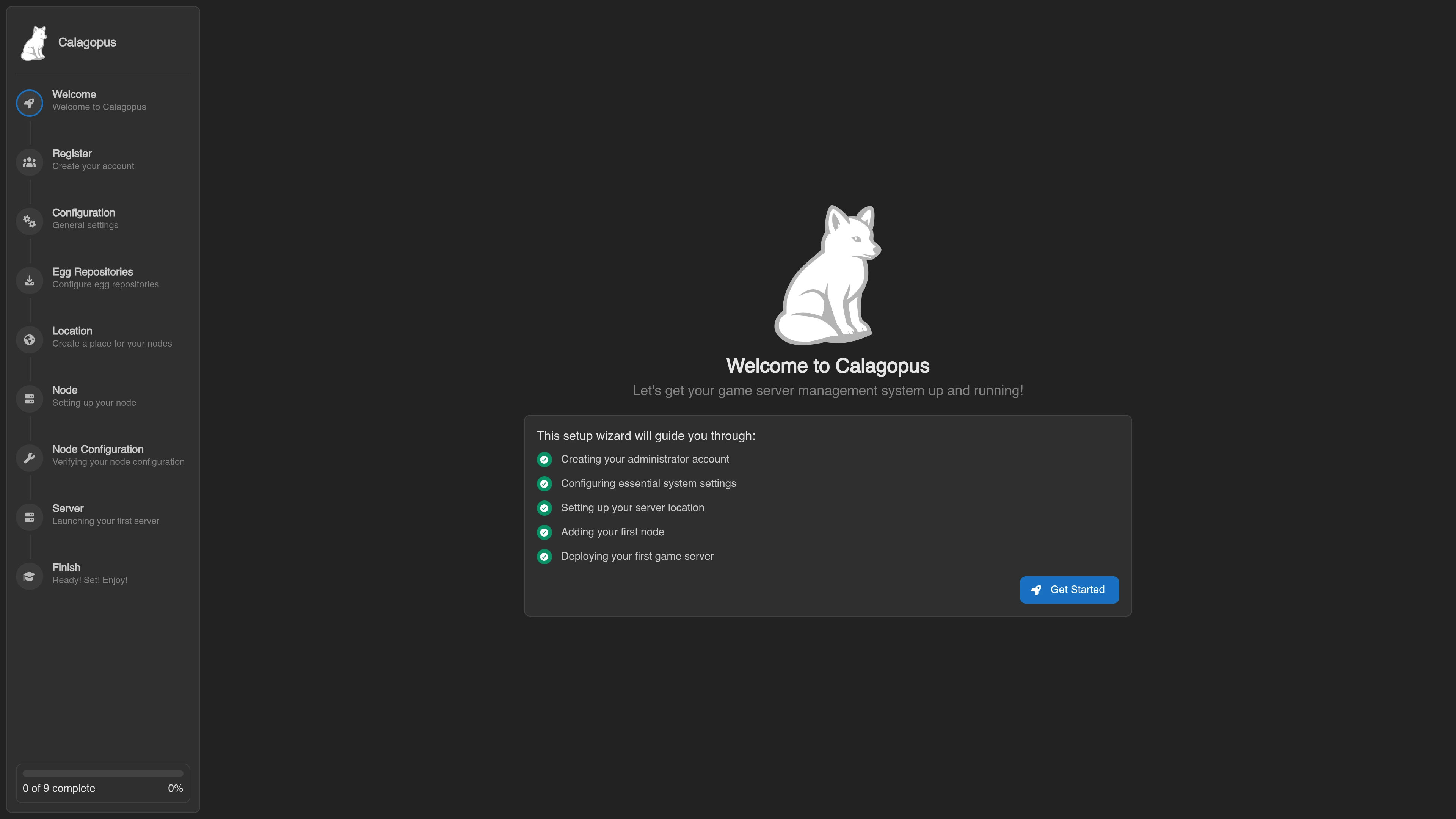
If you haven't installed Calagopus yet, follow the installation guide. Once you reach the OOBE screen, stop. Don't click through it. Don't create the admin user. Just leave it on that screen and come back here.
Don't click through the OOBE
The importer needs an empty Calagopus database to write into. The OOBE creates initial records (admin user, default settings) that would conflict with what the importer wants to do.
I already clicked through - how do I undo it?
You'll need to drop and recreate the database. Pick the matching tab for how Calagopus is installed:
Head to the directory with your Calagopus compose file and stop the stack:
docker compose downDelete the Postgres data directory:
# This wipes the Calagopus database. Don't run this if you have data you care about.
rm -r postgres
Start Calagopus back up:
docker compose up -dSet the Pelican Directory
Most of the commands below reference your Pelican install directory. To save typing, set it as a shell variable up front. If your Pelican host mount is at /srv/pelican, this is fine as-is; otherwise change the path:
export PELICAN_DIRECTORY=/srv/pelicanThis is optional - you can substitute the path inline anywhere you see $PELICAN_DIRECTORY - but it makes the commands shorter.
Choose Your Calagopus Install Method
The exact commands depend on how Calagopus itself is installed. Pick the matching tab and follow along:
Building the Pelican .env File
Pelican's database is reachable from within the Pelican containers, but likely not from your Calagopus containers - different Docker networks use different hostnames. The solution is to build a small pelican.env file with database connection details that work from where the importer will run.
The importer needs APP_URL, APP_KEY, and the database settings. Pelican supports these database drivers:
mysqlmariadbsqlitesqlite3
You can find the values in Pelican's .env file. You will be assembling them into a new file in a moment.
APP_URL
This is your existing Pelican domain. Look for it in Pelican's docker-compose.yml or its .env. Example:
APP_URL=https://panel.example.comAPP_KEY
Find this in Pelican's .env:
cat $PELICAN_DIRECTORY/.env | grep APP_KEYCopy the value. It looks like:
APP_KEY=base64:xc5QXq4u3Qgi3zRP0Q9qq32mnZvl0lVYDB_CONNECTION
Look at Pelican's .env for the value. Common values are mysql, mariadb, or sqlite:
DB_CONNECTION=mysqlMySQL / MariaDB Database Settings
If DB_CONNECTION is mysql or mariadb, you also need:
DB_HOSTDB_PORTDB_DATABASEDB_USERNAMEDB_PASSWORD
Most of these come straight from Pelican's .env, but DB_HOST is tricky. Pelican's .env probably has something like DB_HOST=database (a Docker service name), which won't resolve from outside that compose stack. Get the actual container IP instead:
# Linux/MacOS - run from inside the Pelican directory
echo "DB_HOST=$(docker inspect -f '{{range .NetworkSettings.Networks}}{{.IPAddress}}{{end}}' $(docker compose ps -q database))"

# Windows
echo "DB_HOST=$($(docker compose ps -q database) | foreach { docker inspect -f '{{range .NetworkSettings.Networks}}{{.IPAddress}}{{end}}' $_ })"
A finished MySQL/MariaDB block looks like:
DB_CONNECTION=mysql
DB_HOST=172.29.0.4
DB_PORT=3306
DB_DATABASE=pelican
DB_USERNAME=pelican
DB_PASSWORD=secret
SQLite3 Database Settings
If DB_CONNECTION is sqlite or sqlite3, you only need DB_DATABASE:
DB_CONNECTION=sqlite
DB_DATABASE=/database.sqlite
The path matters: /database.sqlite is where the SQLite file will be placed inside the Calagopus container. If Pelican's original .env has a relative path like database/database.sqlite, override it with this absolute in-container path.
Assembling the File
Head to the Calagopus directory (where your compose.yml lives) and create a file called pelican.env with everything you collected:
APP_URL=https://panel.example.com
APP_KEY=base64:xc5QXq4u3Qgi3zRP0Q9qq32mnZvl0lVY
DB_CONNECTION=mysql
DB_HOST=172.29.0.4
DB_PORT=3306
DB_DATABASE=pelican
DB_USERNAME=pelican
DB_PASSWORD=secret
Running the Import
Copy the pelican.env you just made into the Calagopus container:
docker compose cp pelican.env web:/.envIf you're on SQLite3, also copy the database file in:
docker compose cp $PELICAN_DIRECTORY/database/database.sqlite web:/database.sqliteNow run the importer:
docker compose exec web calagopus-panel import pelican --environment /.envThis walks through users, servers, nodes, allocations, eggs, and so on. Larger Pelican installs take longer; small ones finish in seconds. Progress is logged to stdout.
If the import errors out
Treat the database as poisoned. Partial imports leave Calagopus in an inconsistent state. Drop the Postgres data (the steps in the OOBE warning callout above), let Calagopus recreate it empty, and re-run the import.
When the import finishes, restart the stack:
docker compose down
docker compose up -d
Log in with your existing Pelican credentials.
What's Next
Wings also needs to be updated to point at the new panel. See Wings - Updating for that step.
After the migration, regenerate any API keys used by external scripts. The old Pelican keys will not work, and the Calagopus API differs from Pelican's, so those integrations will need to be updated regardless.